Let's say that I have tens or possibly hundreds of confidential documents, and I need to study several topics from different documents. I don't know which documents cover those topics, and it's challenging to search them all. Full-text search is somewhat helpful, but I don't always know the specific keywords, and searching for one keyword might take a lot of time. I also usually need a specific form of the word for the search to be successful, e.g., present or past tense, so I need to perform multiple searches for a single keyword to find all the relevant documents.
Since those documents are confidential, I cannot upload them anywhere to use AI tools to help with my search. I recalled that there is RAG, retrieval-augmented generation, which is possible to use with local LLMs, large language models, or, you might say, local AI. I will go through a few practical observations I made while using these tools, so you can try this setup if you have similar needs as I did. I will skip most of the explanations of how it works and why; that would be beyond the scope of this article. Fortunately, it's perfectly feasible to just install a few tools and use them right away.
Using local LLM
While you could use a single application combining both local LLMs and RAG, I still suggest using a more advanced tool for local LLMs since you have better control over model parameters. I use LM Studio; you can download it from their website: https://lmstudio.ai/. It has a nice UI, so it's easy to use. I will describe my setup of LM Studio, but if you use any other tool, e.g., Ollama, you should be able to adjust parameters of your models too.
Choose the "Power User" option when enabling LM Studio for the first time; this will allow you to access the model from other applications. You should be able to change the setting at the bottom bar, where you can switch between "User", "Power User", and "Developer" modes. The "Developer" mode has a little bit of a confusing name; I chose that first, but I realized later that it means you want to develop the LM Studio itself, so I switched to "Power User", which is sufficient.
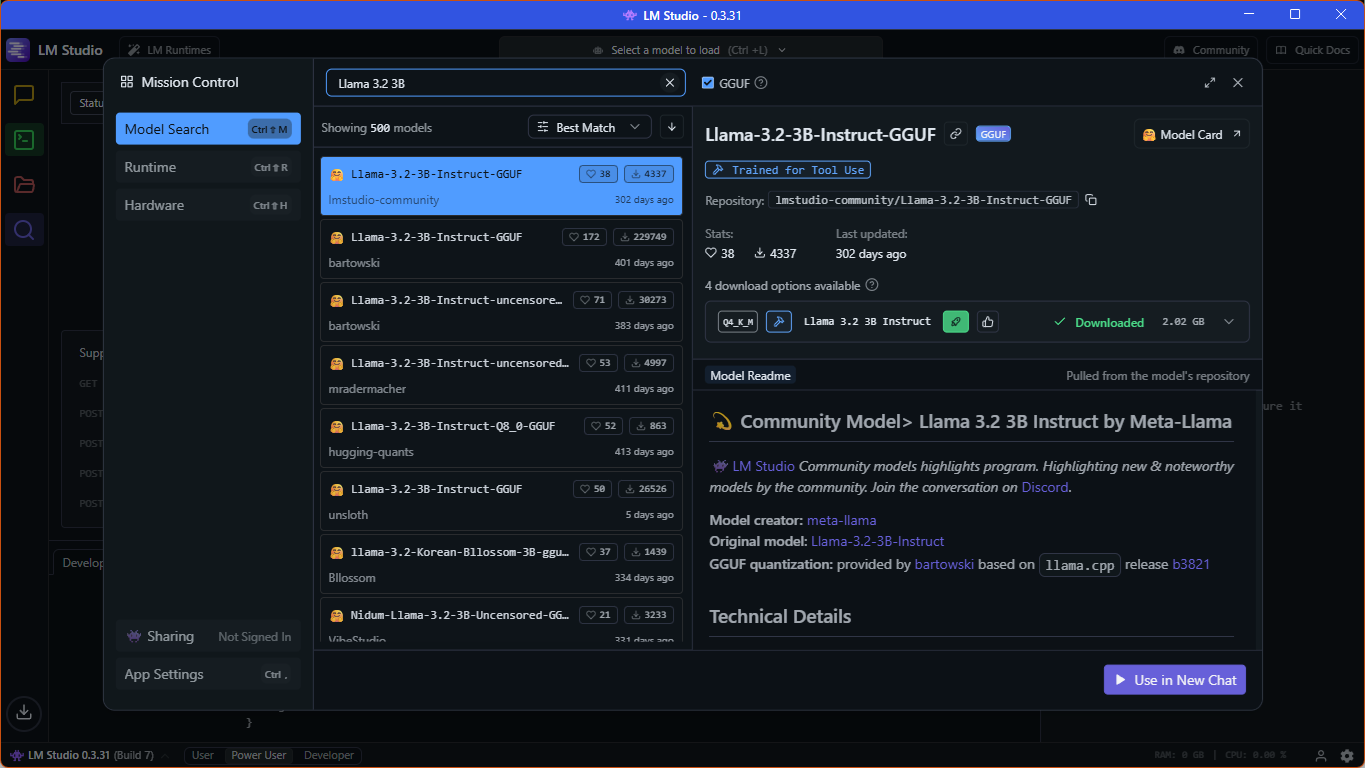
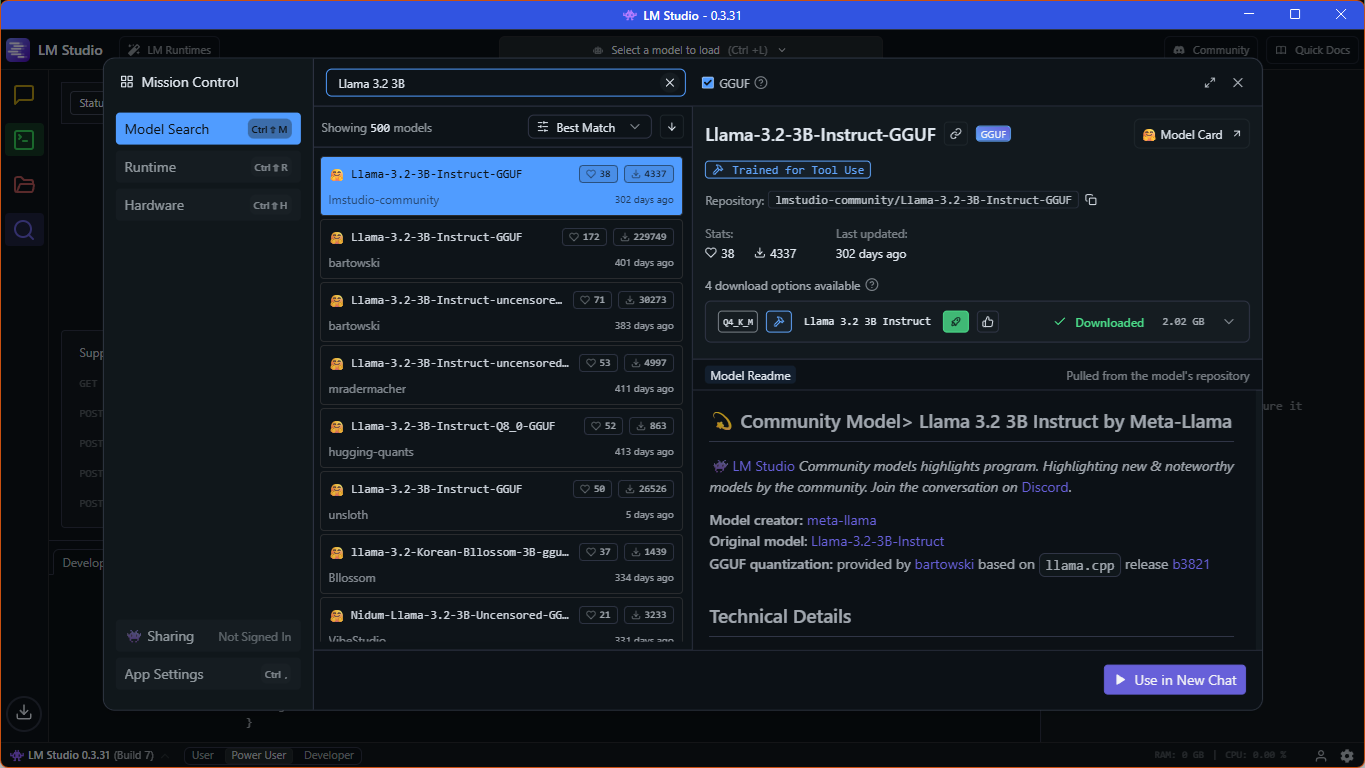
I have a GPU with 4 GB VRAM in my laptop, so I decided to use one of the very small LLMs, and I was happy with "Llama-3.2-3B-Instruct-GGUF" directly from "lmstudio-community". You can download models when you click on a "Discover" button with a magnifying glass icon on the left panel; see a screenshot below with the exact model highlighted.
Then click on the "Developer" button with a command line icon on the left panel, and you should see the "Status" switch that toggles between "Stopped" and "Running". Make sure that it is switched on and the server is running; that should display the localhost server address and port. You can optionally update the port under the "Server Settings" button next to the "Status" toggle. Either way, we will need this port later when setting up a tool with RAG.
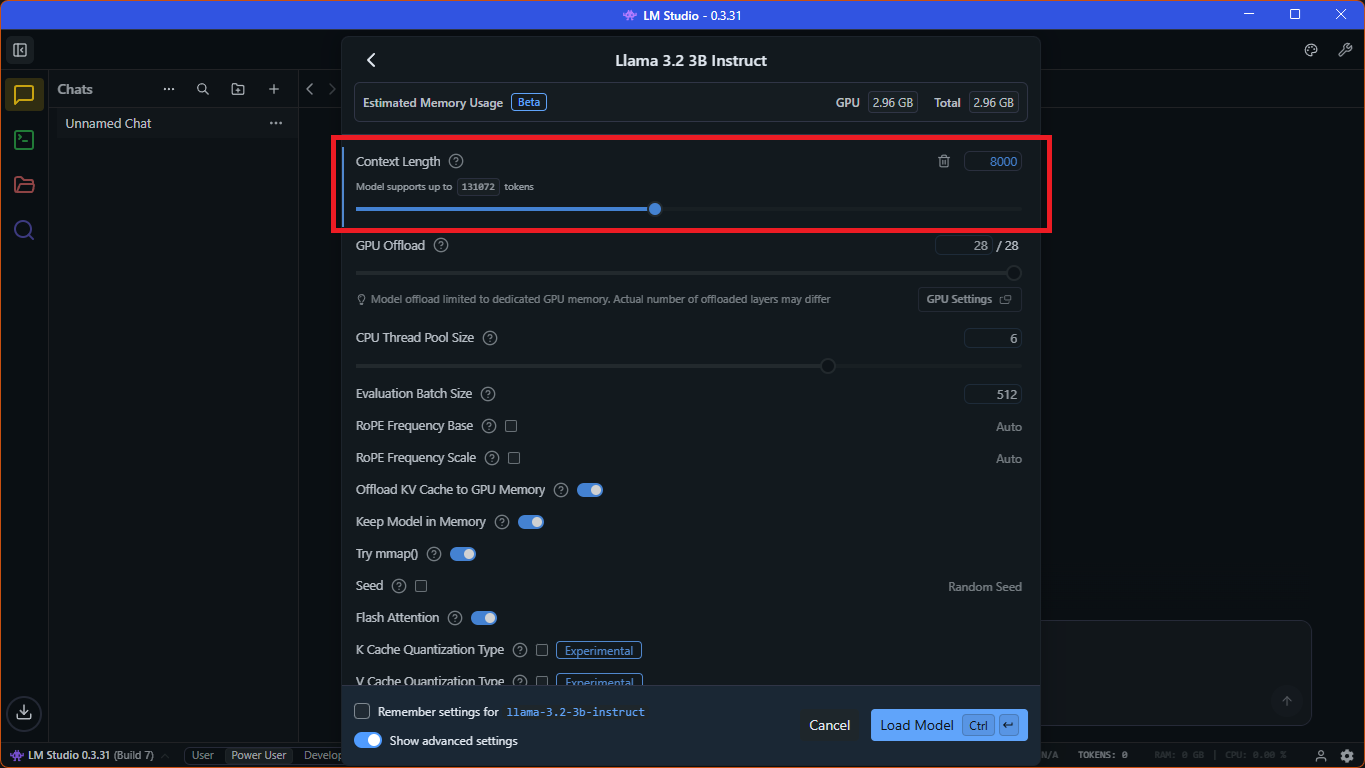
If you want to change model parameters, you can do so now by clicking on the "Select a model to load" button on the top and by enabling the "Manually choose model load parameters" toggle in the context window that appears. By clicking on the selected model, the window changes, and you can update many parameters. I usually update a number of tokens under the "Context Length" option from the default 4096 so I can search in more snippets from my documents in one prompt. The sweet spot was around 8000 for me; this should still mostly fit on my GPU, so answering the prompt would still be quick. If you select too high a value, the model will also use your RAM, which has a significant impact on generation speed. See the screenshot below with the context length updated.
Setting up local RAG
I tried several tools for local RAG; I will mention some later, but I liked AnythingLLM for its simplicity. It's a UI application while still offering enough options to customize RAG and LLM prompting. You can download AnythingLLM from their website: https://anythingllm.com/. Be aware that the installation might take some time; at least on my machine with Windows, it could be up to 30 minutes.
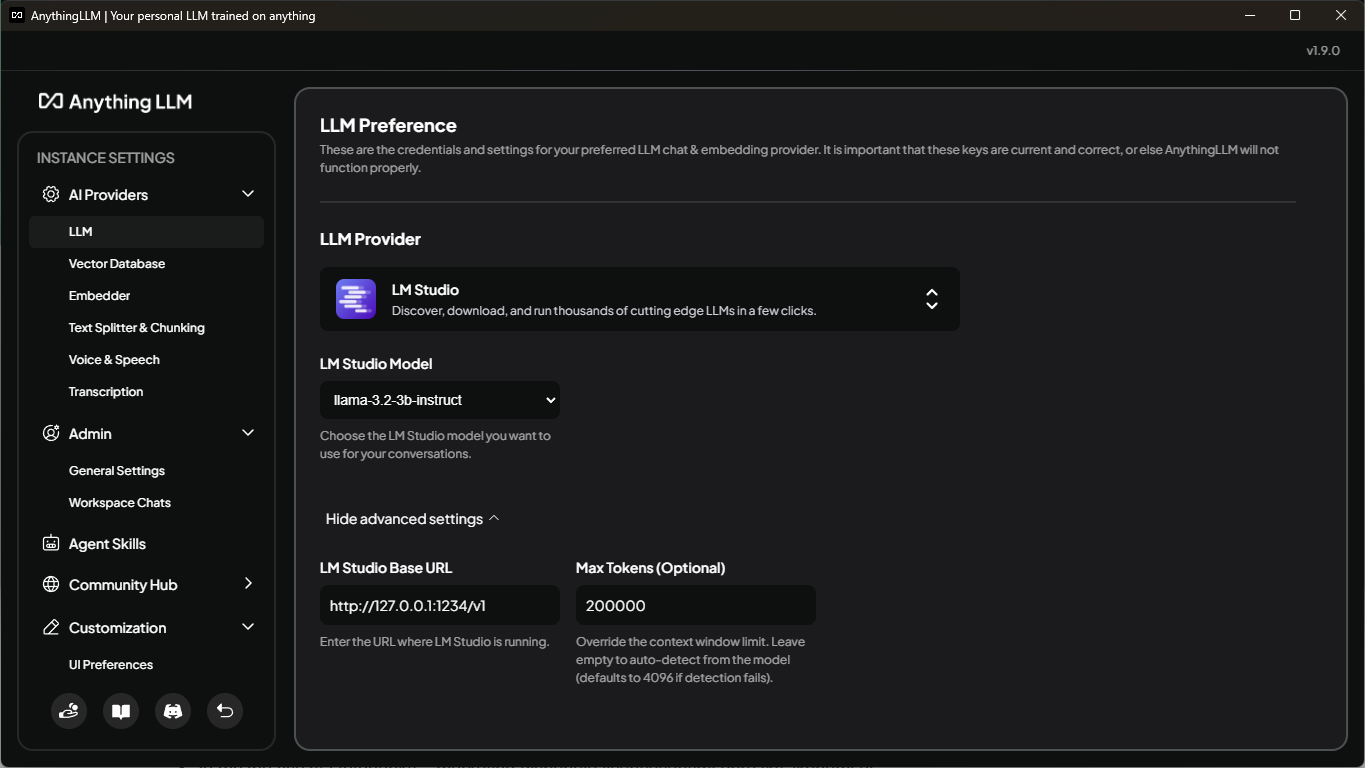
I already stated that you could use it as a single tool for both LLM and RAG, but I couldn't find a way to change model parameters, mainly context length, within AnythingLLM. Therefore, I am using a built-in LM Studio integration to connect it with a pre-configured model. When you go to the settings by clicking on the icon with a wrench key in the bottom left corner, you can select "LLM" under "AI Providers" in the left panel. Select "LM Studio" as "LLM Provider", and it should have the default base URL prefilled under advanced settings. There you can, and should, also update "Max Tokens"; I recommend using a value higher than configured for a model. That way you get an error stating that your context exceeded the model; otherwise, AnythingLLM cuts your prompt to fit into the defined length, so you end up losing data.
Still in the settings, you can configure "Vector database", "Embedder", and "Text Splitter & Chucking". Those are all connected to RAG. I used the default option "LanceDB" for "Vector Database", so I cannot comment on other options. For "Embedder", I tried "all-MiniLM-L6-v2" and "nomic-embed-text-v1", and I decided to stick with the default all-mini. It was much quicker for my documents, around 1 hour of embedding in my case, while Nomic Embed took roughly 4 hours. I also didn't see any noticeable improvement with Nomic Embed over all-mini regarding the accuracy when prompting.
What matters the most are options under "Text Splitter & Chunking"; they are "Text Chunk Size" and "Text Chunk Overlap". These will determine the size of your prompt. I would say that chuck size is self-explanatory. I am not sure what the default is, but I used a maximum of 1000, and it was ok for me. I tried to change the overlap a few times; it might help to use some higher value than the default 20, so you can increase the chance of finding the adjacent chunks for a single prompt. In the end I returned it to the default 20, since it was more beneficial to have more diverse snippets in my case. But this is highly dependent on the information you want to process. It might be obvious, but I would like to point out that when you change any of these options, the embedding of your documents will need to be processed again. You might want to experiment with the changes while you have only a few documents that are processed quickly. You can embed all of your documents later once you find your ideal values.
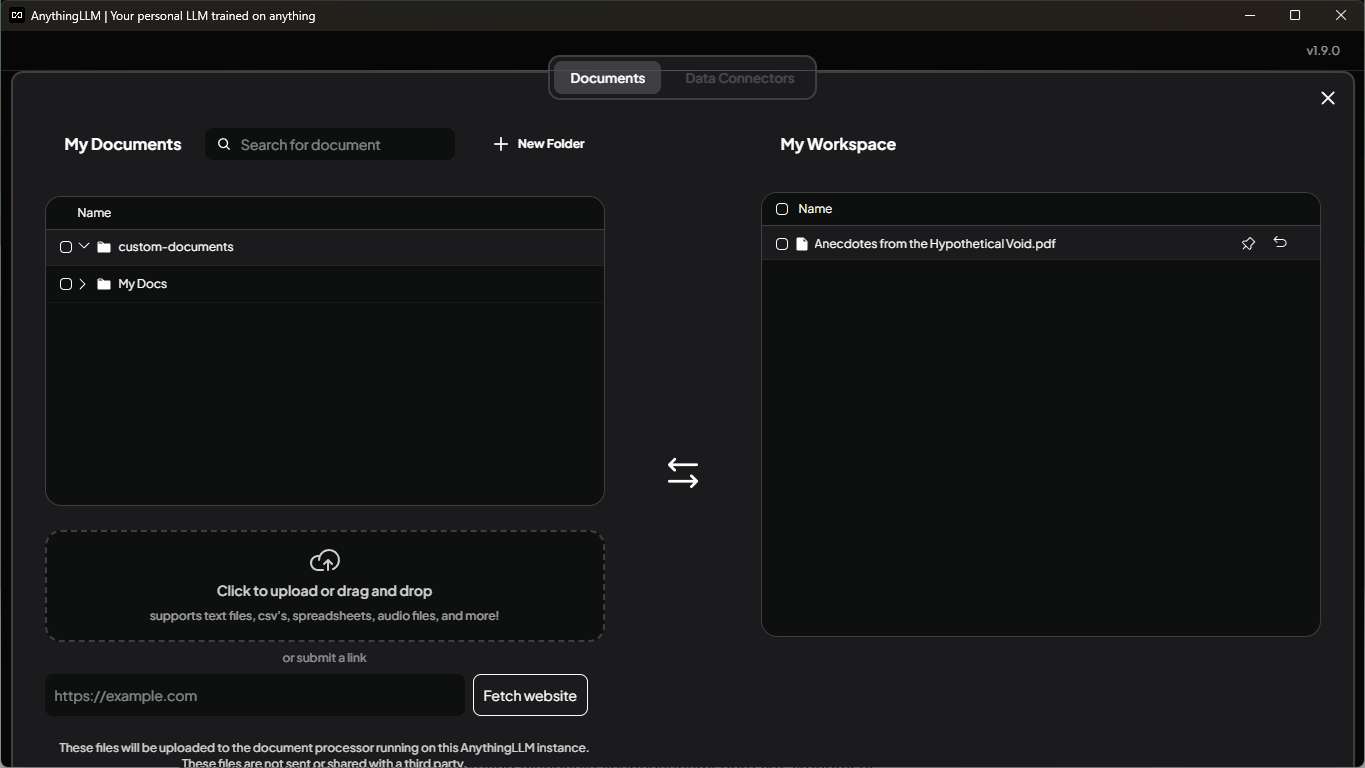
Now it's time to upload your documents. You need to have a workspace, so create one if you don't have it yet. If you hover over your workspace, or if you click on it, you should see an icon to upload documents. Click on it and use "Click to upload or drag and drop" to select your documents. The term "upload" is quite misleading, since everything stays on your machine in this case. Once you have your documents uploaded, you can select them and then use the "Move to Workspace" button. When you have selected all required documents, click on the "Save and Embed" button in the bottom right corner. This might take some time, depending on the size of your documents. In my case it was around 1 hour of processing a few hundred documents having a few hundred megabytes. After that it might look like the following screenshot; I only have one document there for simplicity.
Before asking any questions, I suggest going to workspace settings by clicking on a gear wheel next to workspace. Select the "Vector Database" tab on the top to update a few more values. I suggest using the "Accuracy Optimized" option under the "Search Preference"; I had more luck with this option. The number of "Max Context Snippets" can be increased to search more snippets and documents at once. But your context will get bigger, so you might easily exceed the context size of your model. You can also change the "Document similarity threshold"; this can help to filter out less relevant snippets. Don't forget to click the "Update Workspace" button that appears after any changes. I often overlooked it several times, and then I wondered why the results are mostly the same.
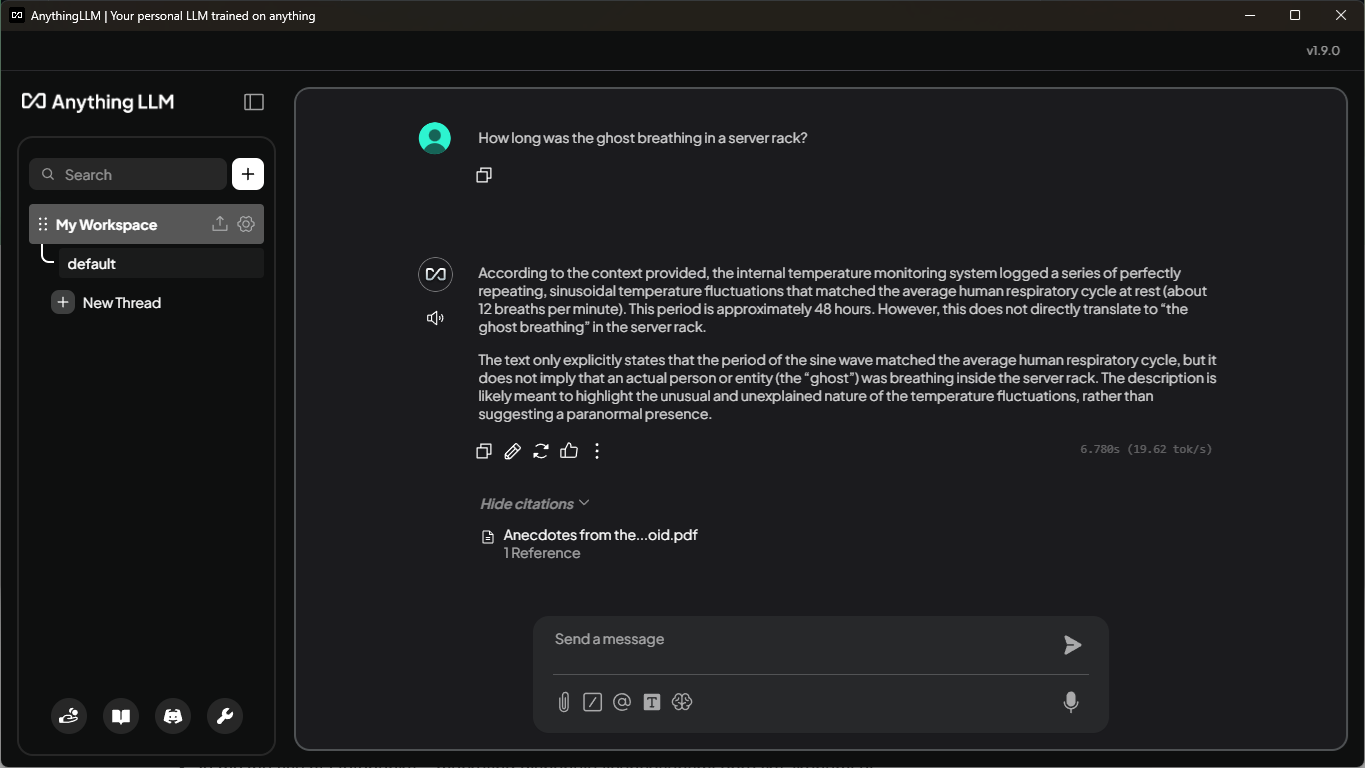
Finally, back in the workspace, you can ask a question. I generated some random facts and put them into a PDF file. When I ask a very specific question, it uses snippets from the selected document in the context given to LLM, so it can use information that is otherwise confidential. You can see on the following screenshot that it was able to answer a very odd question, and I can confirm that 48 hours is the correct number.
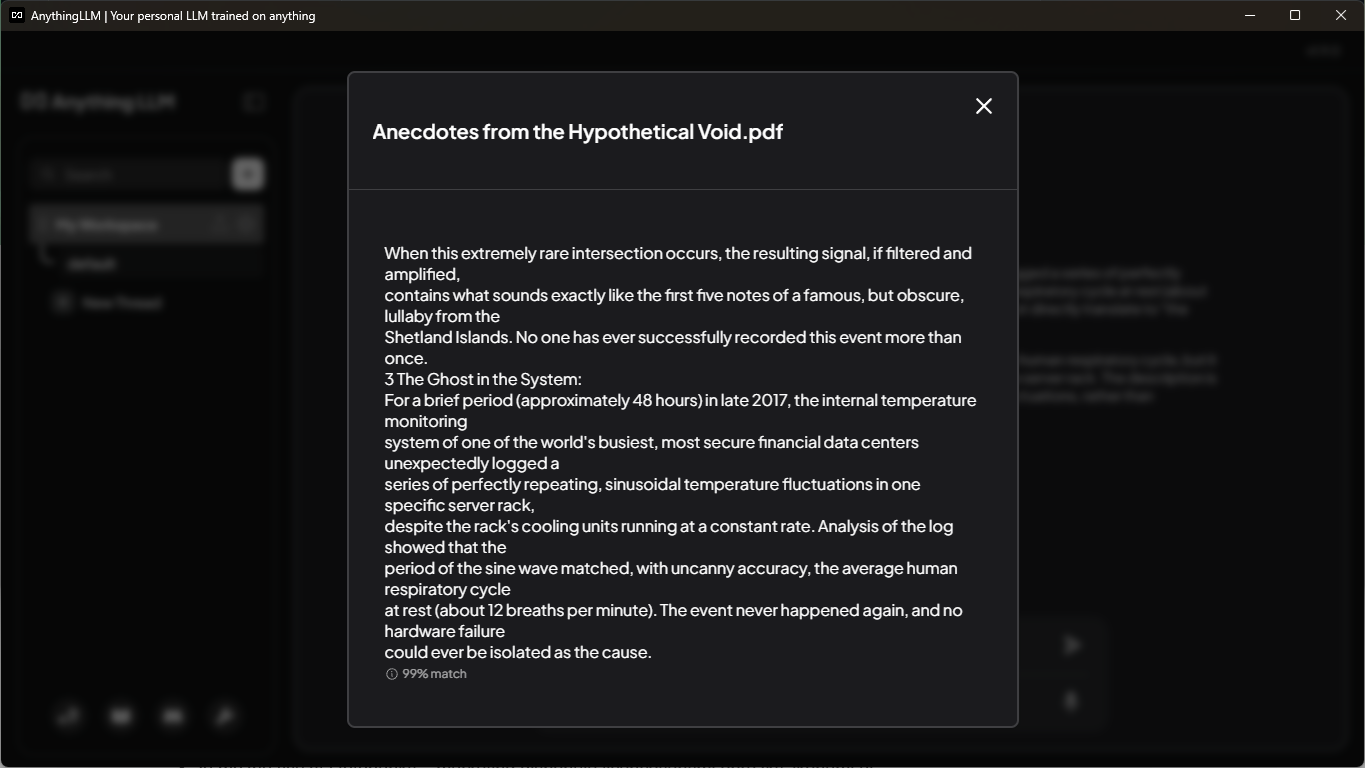
For me, it was much more useful that I could see what snippets were used in the context. You can check that by clicking on "Show citations" below the answer. In the above screenshot, it's already expanded. You can see the number of references from the relevant documents. After you click on any document, you can see an exact snippet with the percentage score matching your prompt. You can see this in a screenshot below, so you can also validate that 48 hours was the correct answer.
Conclusion
As I mentioned earlier, there are other tools that will allow you to use RAG on your local machine. I tried GPT4All: https://www.nomic.ai/gpt4all, 5ire: https://5ire.app/, and Open WebUI: https://openwebui.com/. The first two are somewhat similar to AnythingLLM, but I found they have fewer options to configure them, so I couldn't improve my prompting as easily as described in the article. But it seems they are still in early versions, so they might improve over time.
The last mentioned Open WebUI is definitely the most capable and configurable, but I found the user experience quite frustrating, and it was also more difficult to install, so I wouldn't suggest it to people without a technical background. I tried to compare the result with AnythingLLM, and in my case it was more or less the same, so I decided to continue using AnythingLLM, and so far I am happy with it.
I hope this article will motivate you to try local LLM with RAG yourself, and that it will be helpful for anyone who needs to work with a lot of confidential documents.
Share article
Author
Vojtěch HrbasDeveloper, I am tinkering with many things, in my personal life I would call myself a nerd or a geek, but also a DIY guy. I like the term Renaissance man, you need to aim high.
Get the latest updates from the world of Edhouse – news, events, and current software and hardware trends.
Thank you for your interest in subscribing to our newsletter! To complete your registration you need to confirm your subscription. We have just sent you a confirmation link to the email address you provided. Please click on this link to complete your registration. If you do not find the email, please check your spam or "Promotions" folder.